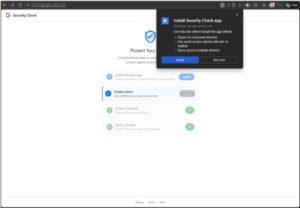
 “Disguised as a routine security checkup,” Malwarebytes researcher Stefan Dasic confirmed in a that the attack “walks victims through a four-step flow that grants the attacker push notification access, the device’s contact list, real-time GPS location, and clipboard contents—all without installing a traditional app.”
Not surprisingly, then, Malwarebytes has described this “cleverly disguised attack” as being “very nasty.” I’d go even further and say that it is dangerous in the extreme and something that needs to be on every Google user’s radar. I would say no more than any other fake tool, site or attack using similar tactics, but in this case, I think it merits special attention. “For victims who follow every prompt,” Dasic warned, “the site also delivers an Android companion package introducing a native implant that includes a custom keyboard (enabling keystroke capture), accessibility-based screen reading capabilities, and permissions consistent with call log access and microphone recording.”
The attack itself is relatively simple in design, not relying upon any exploit or browser vulnerability, but rather bad old-fashioned deception. It starts off as an in-browser prompt to install Google’s security checkup tool, which is then pinned to the Home Screen as progressive web app, running in its own window and without a browser bar. All of which is designed to look and feel like a native Google app.
Malwarebytes warned that the attack uses four steps, all of which are framed within the context of being required to enhance your security and protect your Google account, which is also your Gmail account.
- The prompt as described above.
- Confirm notification permissions in the guise of security alerts, allowing the attackers to maintain a functional communication channel when the app itself is not open.
- Another “security action” is prompted, to protect contacts, which actually sends these contact details directly to the attacker domain.
- A final prompt, purportedly to verify your identity in a trusted location, gets your GPS location data.
What You Should Do
- Run a Google Security Checkup – open your Google account and click on the Security & sign-in option. Right at the top of this screen, is the most important thing: your security recommendations. Congratulations if you have none, you are already doing what you can to best protect your account. For most, there will likely be one or more flagged. Clicking on the option will take you to the Security Checkup tool itself. Google will hand-hold you through the steps required to improve your account security.
- Replace your current password with a passkey.
- Activate Google’s Advanced Protection Program.
If you have questions or need assistance, contact a member of the Admiral security team.
Get a Free Consultation
Fill out the form below to get a free consultation and find out how we can make your technology hassle-free!